
Building a custom computer requires time, money, and careful planning. After spending hours assembling high-end components, many builders forget that keeping a rig fast requires regular care.
Dust accumulation, unnecessary background software, and outdated drivers can contribute to performance or compatibility problems over time. Establishing a few simple maintenance habits helps keep your hardware cool, quiet, and reliable for years to come.
Keep internal components clean and cool
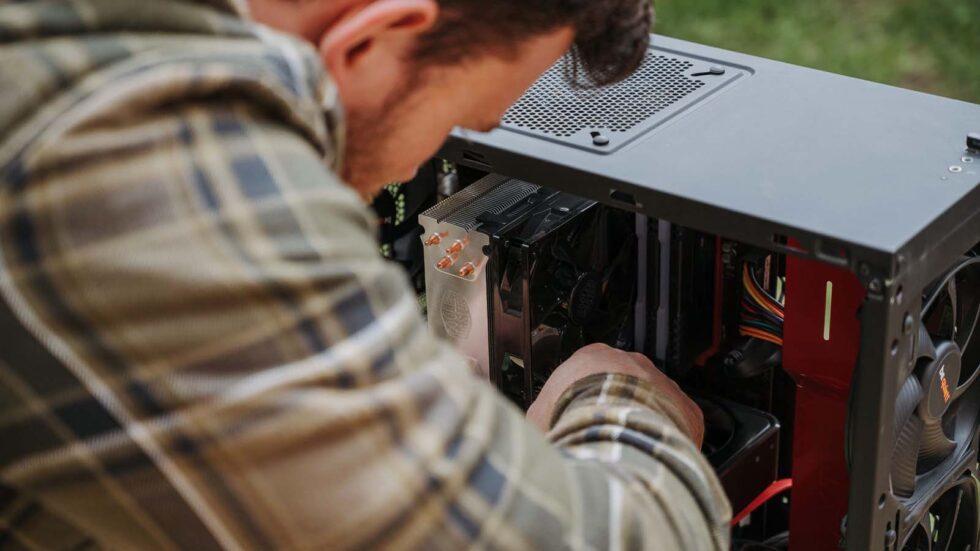
Dust is a common problem for desktop computers because it blocks airflow and clogs heatsinks. Every three to six months, shut down your system, unplug it, open the side panel, and clear away dust using short bursts of compressed air.
Pay close attention to fan blades, radiator fins, and dust filters. Hold fan blades still while cleaning, and never open the power supply itself. Removing dust buildup can improve airflow and help keep CPU and GPU temperatures and fan noise under control.
Optimize system storage and digital security
Hardware runs best when the operating system remains organized and unburdened by bloatware. Regularly uninstall unused programs, clear unnecessary temporary files using Windows Storage Sense, and leave enough free space on your primary NVMe drive for updates and temporary files.
When creating accounts for game launchers or system tools, using a secure email account with a unique password and two-factor authentication helps protect account recovery details. Running periodic malware scans can detect threats that consume system resources. Back up important files regularly in case a drive fails.
Update drivers and maintain stable firmware
Hardware manufacturers regularly release software patches to fix bugs, improve compatibility, and address security issues. Keep your graphics card drivers updated through official utilities, especially when troubleshooting problems or playing newly released games.
The New York Times’ Wirecutter also provides guidance on safe cleaning routines for laptops that can help you avoid damaging delicate electronics. Check your motherboard manufacturer’s BIOS release notes periodically, and install updates when a relevant security, stability, or compatibility fix applies to your system.
Inspect cables and monitor system health
Physical connections inside your computer chassis can loosen after moving the PC or changing components. During your regular cleaning routine, with the system powered off and unplugged, check power connectors, SATA cables, and graphics card support brackets for a secure fit.
Avoid forcing connectors or sharply bending GPU power cables near the plug. Monitor CPU and GPU temperatures under load to spot unusual changes. For detailed step-by-step guidance on how to improve your Windows PC performance, check out the PC Enthusiast website.
Taking proactive care of your desktop computer helps protect your investment and reduces the risk of avoidable hardware problems. Clearing physical dust, keeping storage clean, updating relevant drivers, and checking cables take little time when done regularly. By following these basic rules, you can help keep your system performing reliably for years.